
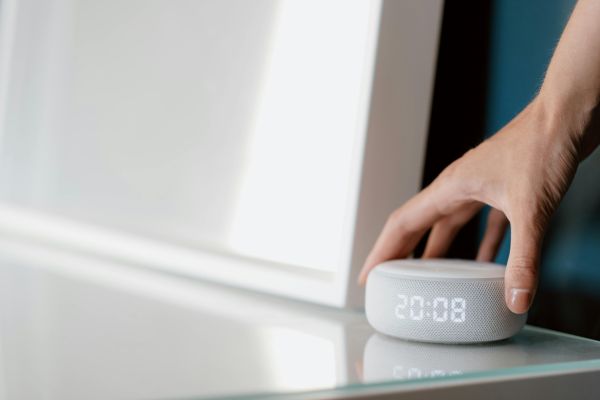
Smart speakers are meant to feel effortless. You say a wake word, ask a question, set a timer, dim the lights, or play a song, and the little device in the corner quietly handles it. So when Alexa suddenly stops answering, it can feel oddly frustrating. Not dramatic, maybe, but definitely annoying, especially when your hands are full or you have already repeated yourself three times.
The good news is that most Alexa response problems are simple. They usually come down to power, Wi-Fi, microphone settings, app issues, or the device struggling to hear you clearly. If you want to troubleshoot Alexa not responding without turning it into a tech project, start with the basics and move step by step.
Start With the Wake Word
Before assuming something is broken, check whether Alexa is actually hearing the wake word. Sometimes the device is working, but it is not recognizing the command because the wake word has changed or the room is too noisy.
Say the wake word clearly and watch the light ring or screen. If the light activates, Alexa is hearing you but may be struggling with the command or connection. If nothing happens at all, the issue is more likely related to the microphone, power, or wake word settings.
Open the Alexa app and check the device settings to confirm the wake word. If someone changed it from “Alexa” to “Echo,” “Amazon,” or another option, the device will ignore the old word completely. It sounds obvious, but it happens more often than people admit.
Check the Microphone Button
Many Echo devices have a physical microphone mute button. When it is turned off, Alexa cannot hear anything, no matter how loudly or politely you speak. On most devices, a red light usually means the microphone is muted.
Press the microphone button once and wait a moment. If the red light disappears, try speaking again. This is one of the quickest fixes, and it is easy to miss because the mute button can be pressed accidentally while dusting, moving the device, or adjusting nearby cables.
If the microphone keeps turning off by itself, check whether the button is stuck or whether the device has been placed somewhere it gets bumped often.
Make Sure the Device Has Power
If Alexa is not lighting up, making sounds, or responding in any way, power should be the next thing to check. Look at the power cable, wall outlet, and adapter. A slightly loose cable can make the device seem completely dead.
Unplug the device, wait about 30 seconds, and plug it back in. This simple restart clears many temporary glitches. Give the speaker a minute or two to boot up fully before testing it again.
It is also worth trying a different outlet if nothing happens. Power strips and loose wall sockets can create small interruptions that affect smart devices more than you might expect.
Look at the Wi-Fi Connection
Alexa depends heavily on the internet. If your Wi-Fi is down, weak, or unstable, the device may hear you but fail to answer properly. You might see spinning lights, delayed responses, or hear something like “I’m having trouble connecting.”
Check whether your phone, laptop, or other devices are connected to Wi-Fi. If the whole network is slow, restart your router. Unplug it for about 30 seconds, plug it back in, and wait until the connection fully returns.
If only Alexa is having trouble, open the Alexa app and check the device’s Wi-Fi settings. You may need to reconnect it, especially if you recently changed your router, Wi-Fi password, network name, or internet provider.
Move Alexa Closer to the Router
A weak signal can make Alexa unreliable. The device may respond sometimes and ignore you other times, which makes the problem harder to understand. Walls, floors, large appliances, and distance from the router can all interfere with the connection.
Try moving the Echo device closer to your router for a quick test. If it starts responding normally, the issue is probably signal strength rather than the speaker itself.
For a more permanent fix, place Alexa somewhere open, away from thick walls, metal objects, microwaves, and crowded corners. Smart speakers do not need to sit right beside the router, but they do need a steady connection.
Reduce Background Noise
Alexa can hear well, but it is not magic. Loud televisions, music, kitchen fans, air conditioners, or several people talking at once can make voice recognition less accurate.
If Alexa responds poorly in one room but works fine in another, sound may be the issue. Move the device away from speakers, windows, and noisy appliances. Also try speaking from a normal distance, not too far across the room and not directly into the speaker.
Sometimes the problem is not volume but clarity. A rushed command, half-spoken wake word, or speaking while walking away can confuse the device. Slowing down just slightly can make a surprising difference.
Restart the Alexa App
If the speaker seems fine but you cannot control it through the Alexa app, the app itself may be stuck. Close the app completely and reopen it. If that does not help, check whether an update is available.
An outdated app can cause syncing issues, especially when managing routines, smart home devices, or device settings. Updating the app keeps it aligned with current Alexa features and fixes.
You can also sign out and sign back in if the app is behaving strangely. It is a small reset, but it often clears account-related delays or display errors.
Check for Device Updates
Echo devices usually update automatically, but sometimes an update may not install smoothly. A device that has not updated properly might respond slowly, lose connection, or act oddly.
Keep the device plugged in and connected to Wi-Fi for a while, especially overnight. Avoid unplugging it repeatedly during this time. You can also ask, “Alexa, check for software updates,” if the device is responding at least partially.
Updates are not always the first thing people think about, but they can matter when Alexa starts acting differently without an obvious reason.
Review Smart Home Device Problems
Sometimes Alexa is responding, but the connected device is not. For example, you may ask Alexa to turn on a light, and nothing happens. In that case, the Echo speaker may be fine, while the smart bulb, plug, switch, or skill is the real issue.
Open the Alexa app and check whether the smart home device appears online. If it is offline, restart that device and make sure it is connected to Wi-Fi or its hub. You may also need to disable and re-enable the related skill.
Try giving Alexa a basic command, such as asking for the weather. If Alexa answers that but cannot control a light or appliance, focus on the smart home device instead of the speaker.
Try Changing the Wake Word
If Alexa keeps ignoring you even though the microphone is on and the connection is fine, the wake word may not be working well in your home environment. Certain accents, room acoustics, or background sounds can make one wake word less reliable.
Changing the wake word in the Alexa app can help. Try another available option and use it for a day or two. It may feel strange at first, but if the device starts responding more consistently, you have found a practical fix.
This is especially useful in homes where someone’s name sounds similar to “Alexa,” or where the TV often triggers the device by accident.
Reset Only When Necessary
A factory reset should be the last step, not the first. It removes device settings and requires setup again, so it is best used when simpler fixes have failed.
Before resetting, restart the device, check Wi-Fi, confirm the microphone, update the app, and test the outlet. If Alexa still does not respond after all that, a reset may clear a deeper configuration problem.
After resetting, set up the device again through the Alexa app. Keep your Wi-Fi password nearby, and give the device a few minutes after setup before judging whether the issue is fixed.
Conclusion
When Alexa stops responding, the problem usually looks bigger than it is. Most of the time, it comes down to a muted microphone, weak Wi-Fi, a loose cable, background noise, or a small app glitch. Working through each possibility calmly is much better than changing every setting at once.
The easiest way to troubleshoot Alexa not responding is to start with what you can see: lights, power, microphone status, and internet connection. Then move into app settings, updates, and smart home links. With a little patience, Alexa usually returns to normal without much drama, and your home starts feeling smart again instead of stubborn.